Koi AI - AI Video Generator
POLYVERSE INC.Photography
3.864.00 Reviews
- Version
- 1.0.6
- Installs
- 100.00K
- Age Rating
- Teen
Screenshots
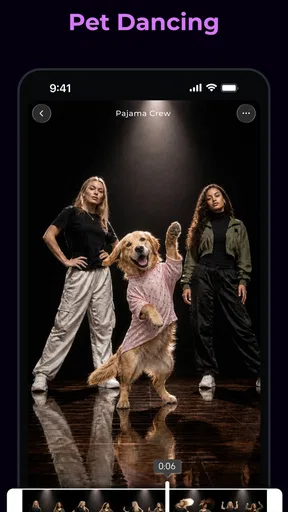
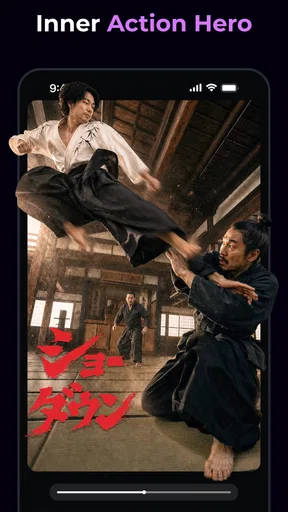
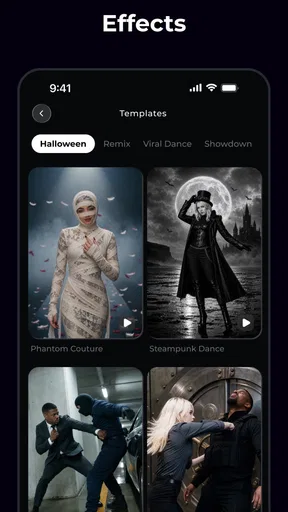
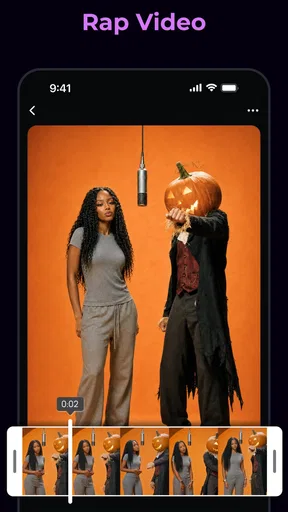
Our Review of Koi AI - AI Video Generator
 Analysis by Appyee
I tried Koi AI as a photography app built around turning a written idea into a short visual creation, and my first impression was that its appeal depends less on traditional camera controls than on how quickly you can move from imagination to a shareable video concept. It is made by POLYVERSE INC. and currently sits in the free-download category, although the presence of in-app purchases means the most useful long-term workflow may not remain entirely cost-free.
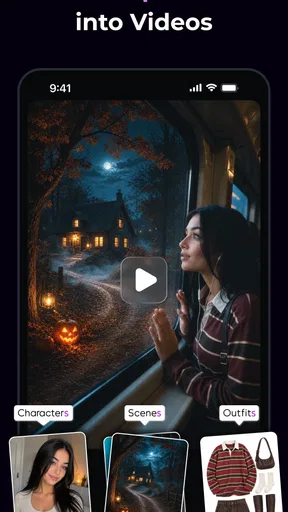
The app’s store summary promises a way to turn an idea into a video, while its short description simply calls it Koi AI. That simplicity is revealing: this is not trying to be another manual editor with a crowded timeline. I approached it as an idea-to-visual tool, the kind of app I would open when I have a concept but not the time, footage, or editing confidence to build something from scratch.
How Koi AI feels when the network becomes part of the workflow
The most important thing to understand is that an AI video generator is not experienced like a normal gallery editor. With a conventional photography app, I can usually crop a picture, adjust color, or arrange clips in a fairly direct sequence. With Koi AI, the quality of the experience is tied to the exchange between my prompt, the app’s processing, and the result that comes back. That makes connectivity part of the creative process rather than a background technical detail.
When the connection is behaving well, the process feels pleasantly focused. I can start with a rough thought such as a dreamy scene, a stylized product idea, or a visual greeting and let the app handle the transformation. The advantage is not only speed. It also lowers the barrier for people who know what they want to communicate but do not know how to shoot, animate, or edit it themselves.
That convenience has a trade-off. I do not get the same immediate, tactile control I have in a conventional editor. A timeline gives me visible control over individual clips, transitions, and timing. An AI generator asks me to describe an outcome and then judge whether the result matches my intention. If the first result is close but not right, the creative work becomes a process of refining the idea rather than dragging a clip a few frames to the left.
A useful fit for quick visual ideas
I see the strongest use case in short-form personal content. Imagine that I want to send a friend a playful animated message instead of a plain text greeting. I can begin with the mood and subject I have in mind, review the generated result, and decide whether it is expressive enough to share. The app is also appealing for someone preparing a visual concept for a small project, because it can help turn an abstract thought into something easier to discuss.
It may also suit social users who regularly need fresh visual material but do not want to record themselves on camera. A person planning a themed post can use the generation process to explore several directions before settling on one. In that situation, the app works more like a visual sketchbook than a replacement for a full production suite.
My advice is to write prompts with a clear subject, atmosphere, movement, and intended feeling. Vague requests can be useful for experimentation, but they make judging the result harder. A more deliberate description gives me a better basis for deciding whether the output is genuinely useful or merely attractive at first glance.
Why a strong connection matters at the right moment
The moments that require the most patience are the ones where an idea is being converted into a finished visual. If I am on an unstable mobile connection, the interruption is more frustrating than it would be in a basic photo editor because I am waiting for a creative result, not just opening a file. This matters when I am trying to work during a commute, in a crowded public place, or just before sending something to somebody.
I would therefore treat Koi AI as an app best used when I can give it a reasonably steady connection and a little uninterrupted attention. That does not mean it has no value on the move. It means the mobile context should be chosen carefully. A quick idea entered while waiting for an appointment can be worthwhile, but I would avoid depending on it for a time-sensitive presentation unless I had already allowed room for delays and another way to finish the task.
There is also a psychological difference between a failed generation and a failed upload. With an upload, I usually know what went wrong. With AI creation, a slow or interrupted process can leave me wondering whether the issue was the network, the request, or the result itself. Keeping that distinction in mind helps avoid changing a good prompt unnecessarily when the real problem is simply an unreliable connection.
Using it comfortably on a phone
Koi AI makes the most sense for people who think in short bursts. I can imagine opening it after noticing an interesting visual idea, developing that idea on a phone, and deciding later whether it deserves a more polished treatment elsewhere. This is different from sitting at a desktop with a library of source footage. The phone-first appeal is spontaneity: the concept is captured while it is still fresh.
At the same time, a small screen changes how carefully I review generated video. A result that seems convincing in a quick preview may reveal awkward movement, an inconsistent subject, or an atmosphere that does not match the original intention once I inspect it more closely. I would not judge a creation only from the first glance. When the visual matters, I would replay it and check the details before sharing.
That extra review is especially important for anyone using the app for a public-facing post or a work-related concept. AI-generated visuals can be engaging without being precise. If the goal is a mood board, that looseness may be helpful. If the goal is to show an exact product, person, or scene, a conventional camera and editor may still be the safer choice because they give me more predictable control.
The app’s Teen content rating also makes it relevant to a younger audience, but I would still encourage thoughtful use. A creative tool can make it easy to produce and share something quickly, while the speed of creation can reduce the time spent checking whether the result communicates what was intended. The rating is not a substitute for personal judgement about what to generate or publish.
What to do when a generation does not go smoothly
My first recovery step would be simple: save the idea in plain language before trying again. If the app is slow or the connection drops, I do not want to reconstruct the prompt from memory. I would keep the core subject, the visual style, and the desired motion in a note, then return to the attempt when the connection is more dependable.
If a result is disappointing, I would change one part of the request at a time. Rewriting everything makes it difficult to learn what affected the outcome. For example, I might keep the subject and mood while clarifying the movement, then compare the next result. This turns experimentation into a controlled process instead of a series of random guesses.
Another practical habit is to separate creative failure from technical failure. A generated video that arrives quickly but misses the intended tone needs a better prompt. A request that never completes needs patience, a connection check, or a later retry. Treating both problems as prompt problems can waste time and lead to increasingly complicated descriptions that do not actually improve the result.
I would also avoid repeatedly tapping through a stalled process. Apart from making the experience feel more chaotic, repeated attempts may make it harder to remember which version produced which result. A calmer workflow is to wait briefly, check whether the app has returned to a usable state, and then make one deliberate retry. That approach is particularly useful when I am working with limited mobile data.
Keeping mobile data and spending under control
Because Koi AI creates video rather than only applying a simple filter to an existing photo, I would use it more carefully on a mobile data plan. I would reserve exploratory sessions for a dependable connection when possible and avoid generating several variations merely because the first one was almost right. The best way to be data-conscious is to improve the prompt before submitting it, not to rely on repeated trial and error.
The free entry point is attractive for testing the basic idea, but the in-app purchase range means I would pay attention before committing to a frequent workflow. Purchases range from $1.99 to $99.99 per item, so the difference between casual experimentation and regular production can become significant. I would first decide how often I expect to use the generator and whether the results genuinely save me time compared with a normal editor.
This is also where Koi AI differs from many familiar photography apps. A standard editor often gives me a predictable set of tools: exposure, color, cropping, retouching, and manual video assembly. Those tools may require more effort, but they let me work directly with material I already own. Koi AI is more valuable when I need to create a visual direction from an idea, not when I simply need to polish a photograph I have already taken.
Compared with a conventional video editor, the trade-off is even clearer. Manual software is usually better for exact timing, consistent branding, detailed audio work, and repeatable production. Koi AI is more appealing for ideation, playful experimentation, and situations where I have no suitable footage. I would use it alongside those tools rather than assume it replaces them.
Who will enjoy it, and who should skip it
I would recommend trying Koi AI if you enjoy visual experimentation, often think of scenes that would be difficult to film, or need a fast way to explore a concept before investing more time. It is particularly approachable for people who find traditional editing interfaces intimidating. The prompt-led approach gives the creative process a more conversational starting point.
I would be more cautious if I needed exact control over every frame, dependable results for professional delivery, or a workflow that remains useful when connectivity is poor. I would also skip it as my primary tool if my main goal is simply to correct photos, trim existing footage, or organize a personal camera roll. In those cases, a focused photo editor or standard video editor is likely to feel more direct and less dependent on generated interpretation.
The app’s current version is 1.0.6, and it supports devices running Android 8.0 or later. That makes it accessible to people who are not using the newest phones, although the practical experience will still depend on the device, the connection, and how demanding the chosen creation is. I would check those basics before planning a larger project around it.
The audience size gives the app some early visibility, with over one hundred thousand installs, while its average rating is 3.8 from around four hundred ratings and several dozen written reviews. I read that as a reason to approach it with curiosity rather than certainty: enough people have tried it to make the concept worth exploring, but the rating also suggests that the experience will not be equally satisfying for everyone.
My connectivity verdict
After looking at the app through the lens of everyday use, I think Koi AI is best understood as a connected creative companion. Its main strength is the jump from a mental image to a video-like result without requiring me to master a full editing workflow. Its main weakness is that the same convenience makes the process less predictable than direct editing, especially when the connection is unstable or when I need precise control.
I would start with small, low-pressure experiments rather than a critical project. Write a specific idea, review the result carefully, and notice whether the app’s interpretation is close enough to be useful. If it saves me time and gives me visual directions I would not have created alone, the free starting point makes sense. If I spend more time correcting the output than I would have spent editing my own material, the usual alternatives are the better choice.
For me, the deciding question is not whether AI can produce something visually interesting. It is whether the result fits the purpose, arrives when I need it, and justifies the data, attention, and possible purchase involved. Koi AI is worth trying for idea-driven video experiments, but I would keep a conventional editor nearby when reliability and control matter more than speed.
POLYVERSE INC. has positioned this Photography app around a modern and appealing idea: making visual creation feel accessible from a phone. I like that ambition, and I can see myself returning to it for quick concepts, playful messages, and early-stage visual planning. I would simply use it with realistic expectations, a stable connection when possible, and a clear understanding that generated inspiration is not always the same thing as a finished production.
Verdict
Strengths of Koi AI - AI Video Generator
- Turns text prompts into short videos with minimal editing effort.
- Useful for brainstorming social media content and visual concepts.
- AI-generated scenes can provide creative results quickly.
- Simple workflow suits users without video production experience.
- May reduce the need for stock footage or manual animation.
Limitations of Koi AI - AI Video Generator
- Results can vary noticeably between prompts and generation attempts.
- Detailed scenes may contain visual glitches or inconsistent objects.
- Video generation can be slow during busy server periods.
- Free usage may be limited by credits, watermarks, or export restrictions.
- Privacy terms should be checked before uploading personal or sensitive material.
Other Releases by POLYVERSE INC.
View All
AI Mirror: AI Photo & Video
Photography4.2

Spellai - AI Art Maker
Art & Design3.8

Bricks Royale-Brick Balls Game
Arcade4.6
Similar Picks in This Category
View All
Google Photos
Google LLC4.4

Gallery
Google LLC4.2

Picsart AI Photo Editor, Video
PicsArt, Inc.3.9

B612 AI Photo&Video Editor
SNOW Corporation4.1

BeautyPlus-Selfie Photo Editor
PIXOCIAL TECHNOLOGY (SINGAPORE) PTE. LTD.4.5

Remini - AI Photo Enhancer
Bending Spoons4.1
Frequently Asked Questions
What is Koi AI - AI Video Generator, and what can it do?
Koi AI - AI Video Generator is designed to help users create short videos with artificial intelligence instead of recording and editing everything manually. Depending on the available tools, you can typically start with a text prompt, image, or creative idea and let the app generate animated scenes, visual effects, transitions, or complete video clips. It is aimed at social media creators, marketers, and casual users who want to experiment with AI-powered video creation.
Is Koi AI - AI Video Generator free to use?
The app may offer free access to selected features, previews, or a limited number of generations, but AI video creation commonly depends on credits, processing limits, or a subscription. Before generating several videos, check the pricing page and the details shown on the download platform, including renewal terms and in-app purchases. Some advanced styles, higher resolutions, faster processing, or watermark removal may require payment.
Do I need any video-editing experience to use Koi AI?
No advanced editing knowledge is generally required. Koi AI is built around simplified prompts and automated generation, so beginners can describe the desired scene, choose an available style, and review the result without working with a complicated timeline. However, producing consistent characters, accurate motion, and polished social-media content may take experimentation. Clear prompts and suitable reference images usually provide better results.
Can Koi AI create videos from my own photos or text prompts?
The app is intended for AI-assisted video generation and may support text-to-video, image-to-video, or related creative workflows, depending on the version and platform. If you upload personal photos, use images you own or have permission to process. Results can vary according to image quality, prompt detail, and the selected style. It is also worth checking whether exported videos include a watermark or have resolution limits.
Is content created with Koi AI safe to publish or use commercially?
You should review Koi AI’s current terms of service, privacy policy, and commercial-use rules before publishing generated content or using it for business purposes. AI-generated videos can raise questions involving copyrighted characters, music, logos, recognizable people, and misleading or harmful material. Avoid uploading confidential information or someone else’s likeness without permission. The app can assist with creation, but you remain responsible for the content you generate and distribute.
